
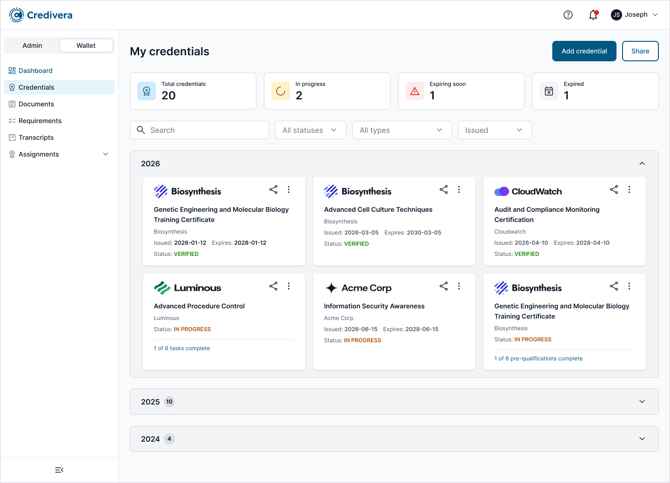
What is changing?
The single navigation panel is now split into two parts.
Side bar
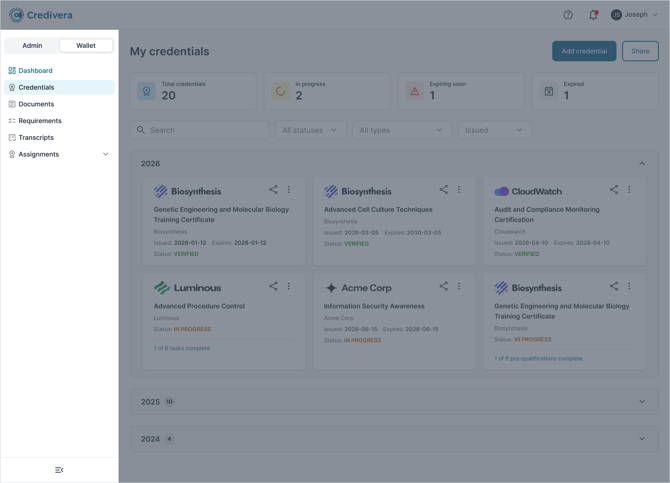
- Collapse to icons: Select the arrow at the bottom of the side bar to shrink it to a slim row of icons and give your page more room. Select it again to expand.
- Expandable groups. Sections with sub-pages, such as Assignments, open and close in place so the list stays short.
- Admin / Wallet switch. If you have admin access, switch between your own wallet and the admin tools. Each view shows only what you need for that role.
Top bar
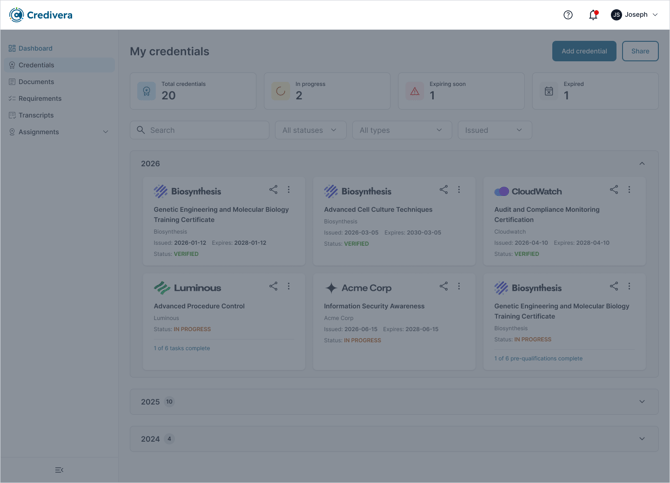
- Help: Open the Help Center from any page.
- Notifications: Access your notifications from anywhere in the app.
- Your account: Open your profile or sign out from the menu under your name.
- Remains in reach: The top bar stays at the top of the screen as you scroll.
On mobile
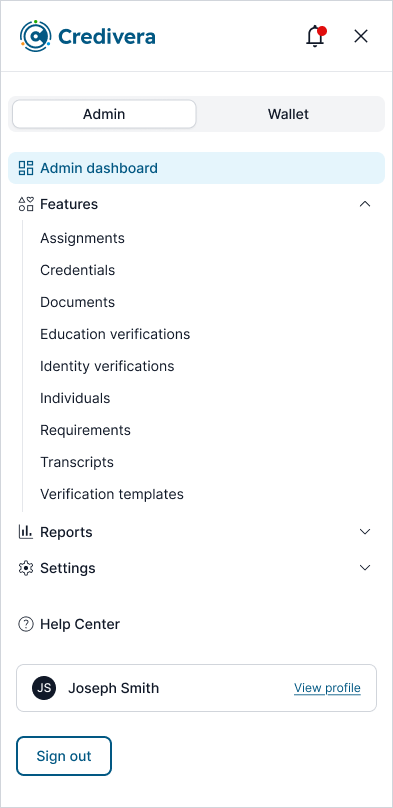
- Tap the menu icon to open the full menu and tap the close icon to return to your page.
- Help, your profile and sign out are at the bottom of the menu.
- The menu closes automatically once you pick a page.
Keyboard and screen readers
- Every item can be reached with the Tab and arrow keys.
- Items are announced with their names, even when the side bar is collapsed to icons.
Frequently asked questions
-
Has anything been removed? No. Every page you used before is still available; some have moved into the side bar's groups or the top bar.
-
Why don't I see the User / Admin switch? It only appears if your account has admin access.
-
Why do some pages still look different? We're updating Credivera one section at a time, starting with the credential wallet. Other sections will follow.