
Your first day as a Credivera Admin is focused on setting up the foundation for managing compliance across your organization.
By the end of this guide, you will have:
- Created your first assignment
- Defined compliance requirements
- Added a requirement to an assignment
- Invited individuals to your organization
- Begun monitoring compliance
Step 1: Create an assignment
Assignments are the foundational way to organize your workforce within Credivera. They allow you to group individuals based on shared attributes and compliance requirements. This flexible structure adapts to your company's unique needs, you can use an Assignment to represent a physical location (like a job site or office), a specific role (like Welders or Framers), or any other framework that matches how your organization operates.
Let’s start by creating an Assignment that matches how your company is organized. To get started, follow these steps:
-
From the main navigation menu, go to Organization > Assignments. Note: Only Super Admins can see and access the Organization menu.
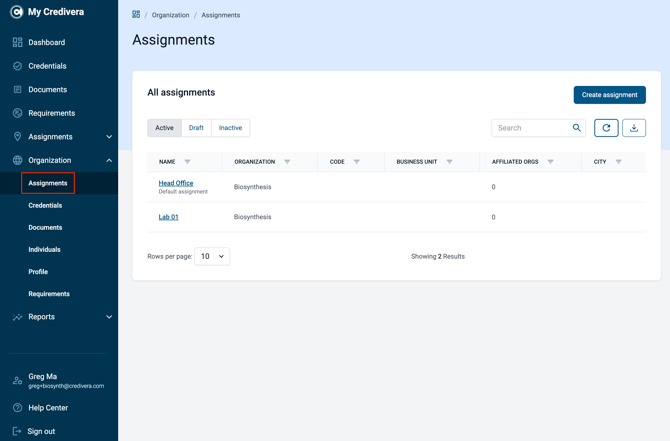
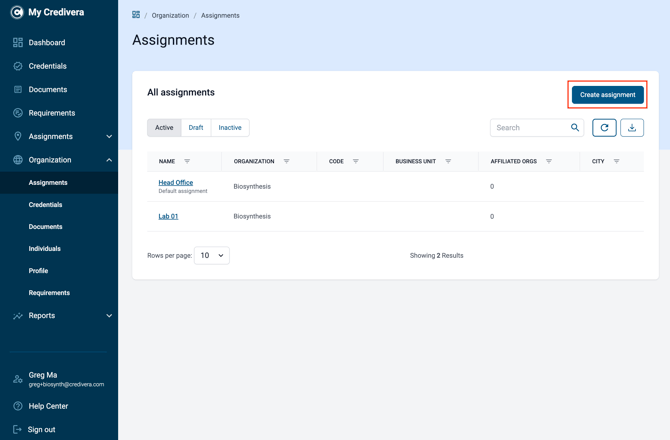
- The Assignments page displays all of your organization's assignments, categorized into three statuses: Active, Draft, and Inactive. To create a new one, click the Create Assignment button.
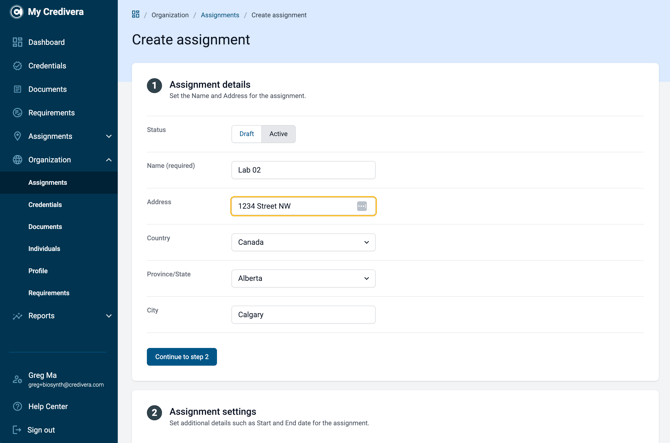
- Creating an assignment is a two-step process. In the first step, you'll enter basic details like the name and location, and select its status. Choosing Draft allows you to safely build and configure the setup in private. Once you switch the status to Active, the assignment will instantly appear on the dashboards of all assigned users.
Finalize your settings in Step 2 and choose if this will be your Default Assignment. Enabling this means all new users will be added to it automatically when they create their accounts. Only one assignment can be set as the default.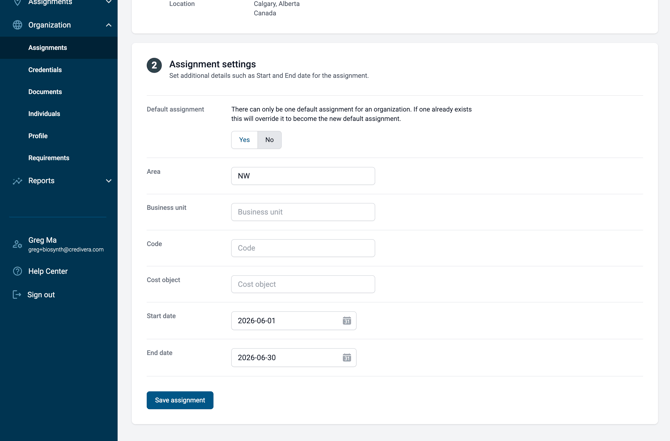
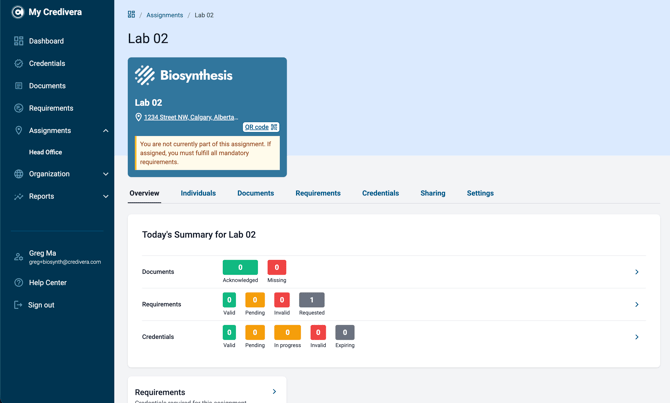
- When you're ready, click Save Assignment. The system will automatically open the detail page for your new assignment. From here, you can use the dedicated tabs to manage its ongoing requirements and members, which we’ll explore in the upcoming steps.
Step 2: Create a requirement
The Requirements feature defines the exact credentials your team needs to remain compliant. This allows you to effortlessly automate compliance monitoring across your entire organization, both now and as you grow.
-
From the main navigation menu, go to Organization > Requirements.
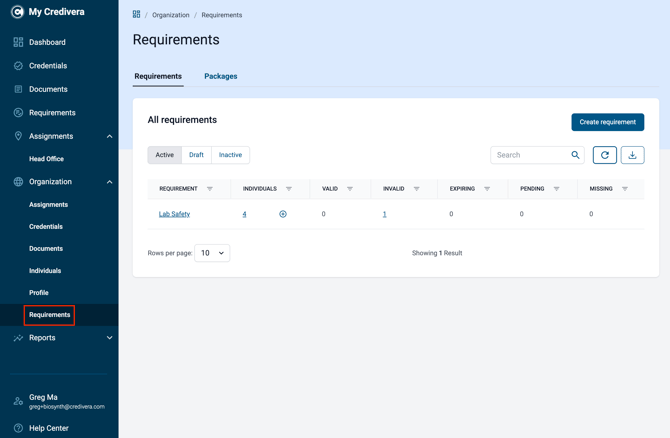
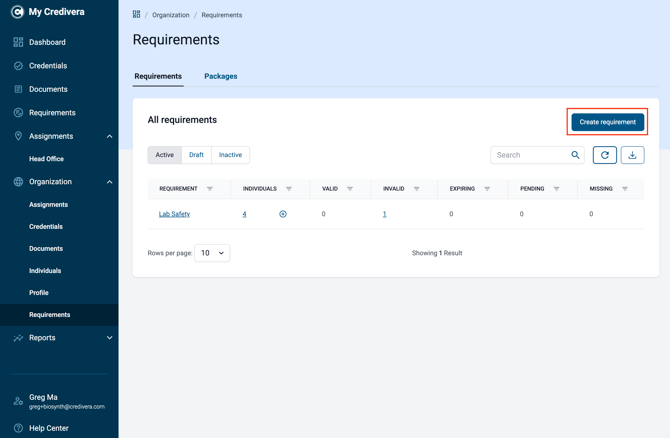
- The Requirements page displays your organization's requirements, and requirement packages, categorized into three statuses: Active, Draft, and Inactive. To create a new one, click the Create Requirement button.
- Creating a requirement is a three-step process. In Step 1, provide a clear name and description. This context ensures that assigned users understand exactly what they need to do to satisfy it.
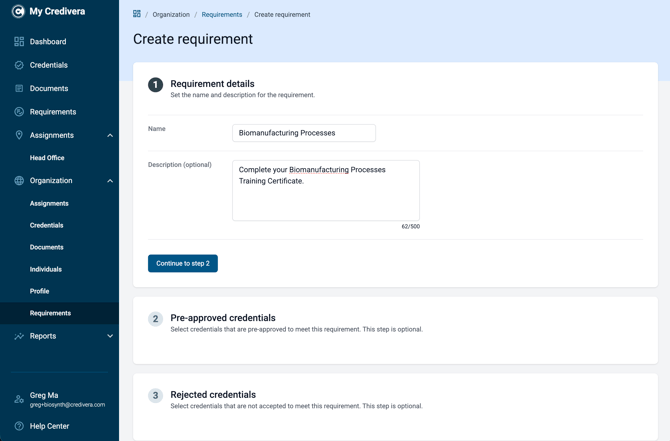
Choose the credentials approved for this requirement in Step 2. If you select multiple options, earning any single credential grants full compliance. Users do not need to hold them all.
Click the Add Credential button to select credentials for your pre-approved list.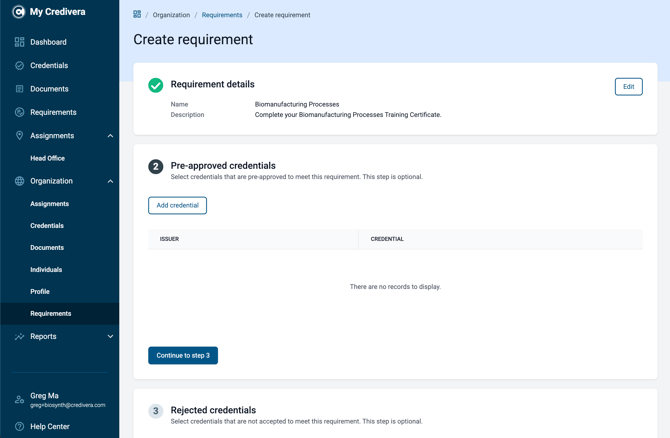
In the Select Credentials window, pick an issuer from the dropdown to view their catalog. Select your desired credentials and click Add to attach them to the requirement.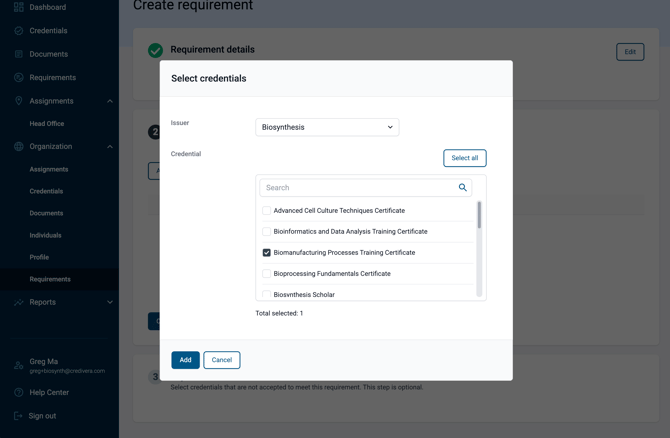
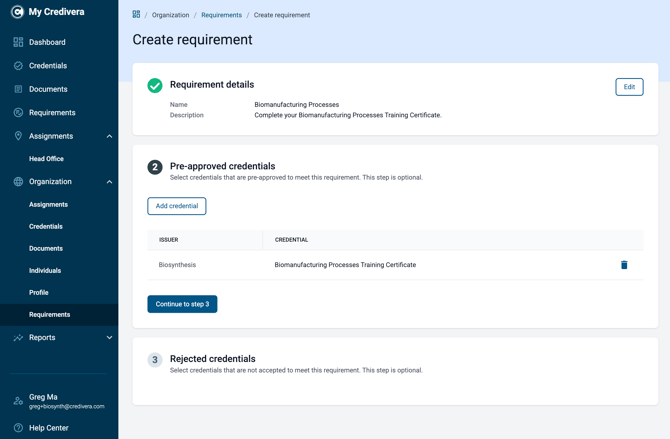
Alternatively, you can skip specifying pre-approved credentials. However, doing so means an administrator must manually review and approve each user's submission to fulfill the requirement.
In Step 3, you can optionally set auto-rejection criteria for this requirement. This is useful for proactively blocking specific credentials or issuers that do not meet your organizational standards.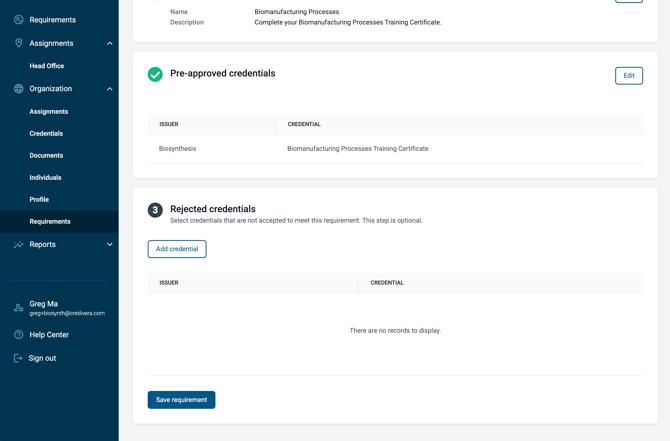
In the Select Credentials window, pick an issuer from the dropdown to view their catalog. Select the credentials you would like automatically rejected or you can reject the issuer entirely.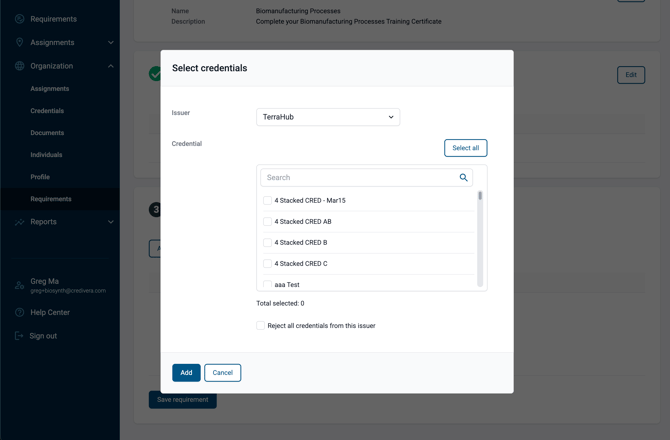
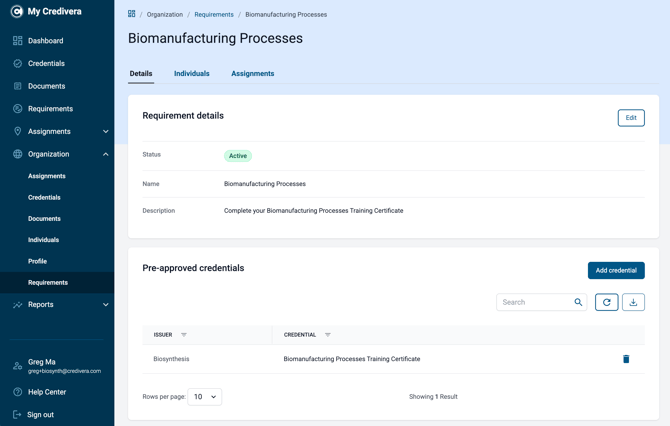
- When you're ready, click Save requirement. The system will automatically open the detail page for your new requirement. From here, you can use the dedicated tabs to manage the individuals and assignments the requirement is added to, which we’ll explore in the upcoming steps.
Step 3: Adding a requirement to an assignment
With your assignment and requirement in place, you can now configure compliance monitoring before inviting individuals to join.
Requirements are applied either directly to an individual or through an assignment. We recommend using Assignments for scalability: when a user is added to an assignment, they automatically inherit all of its requirements.
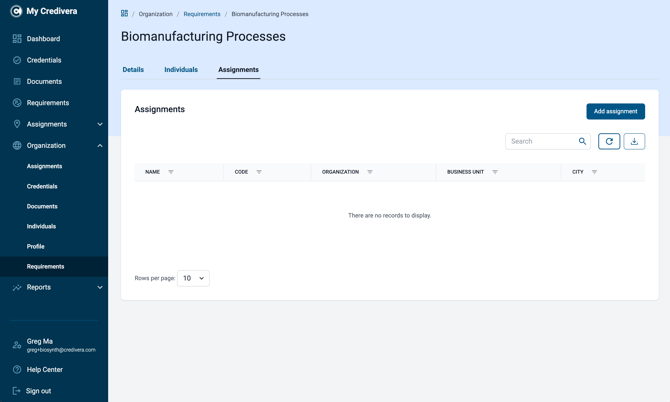
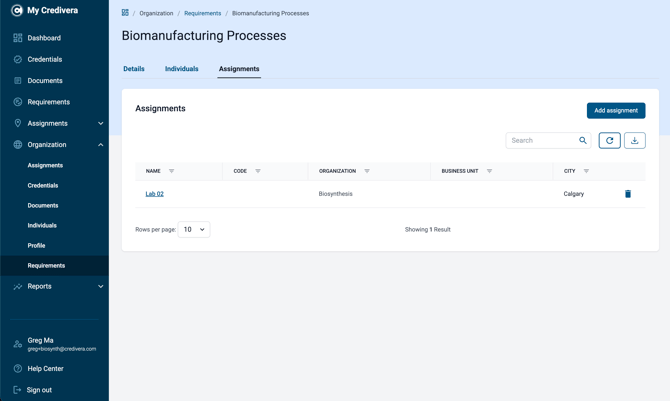
- From the Requirement Details page, click the Assignments tab. This section displays all assignments currently associated to this requirement. Click the Add Assignment button.
- In the window that opens, select the target assignment(s) you want to link. Next, specify if this should be a mandatory requirement. Making it mandatory automatically applies the requirement to all users in that assignment. Choose No if the requirement only applies to select individuals, allowing you to assign it to them manually later.
When you're ready, click Add.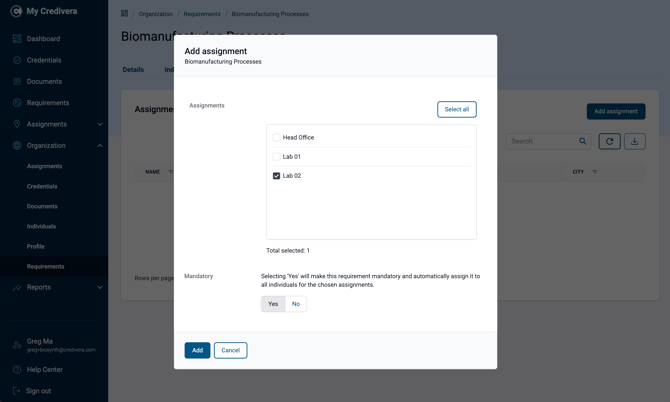
- The requirement has been added to the selected assignment(s) which are now visible in the list.
Step 4: Adding individuals to your organization
With your assignment and requirements successfully linked, you are ready to start onboarding your team!
- From the main navigation menu, go to Organization > Individuals.
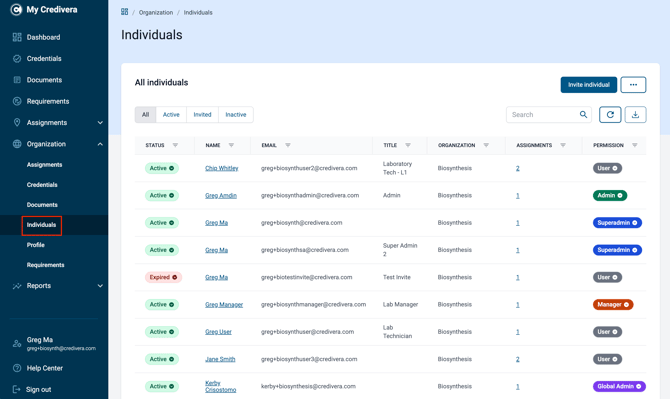
- The Individuals page is your central hub for inviting new team members and managing existing profiles. Here, you will find a list of everyone currently in your organization, along with their status, details, and permission levels.
To add someone new, click the Invite Individual button.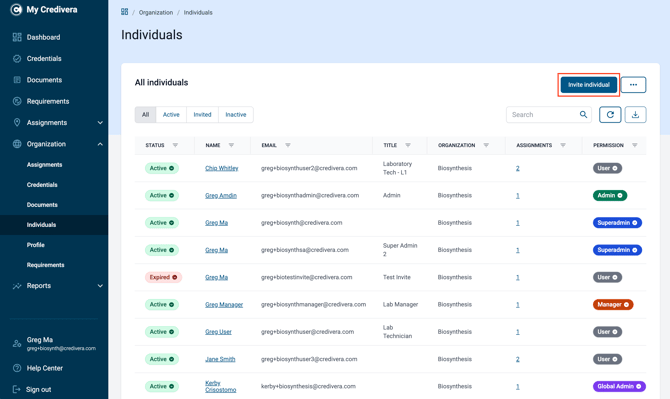
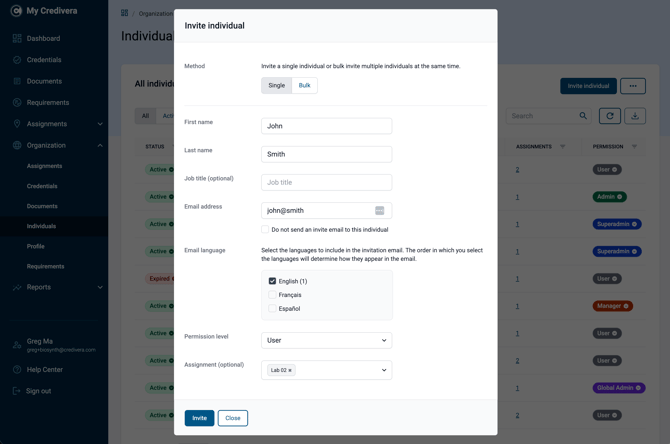
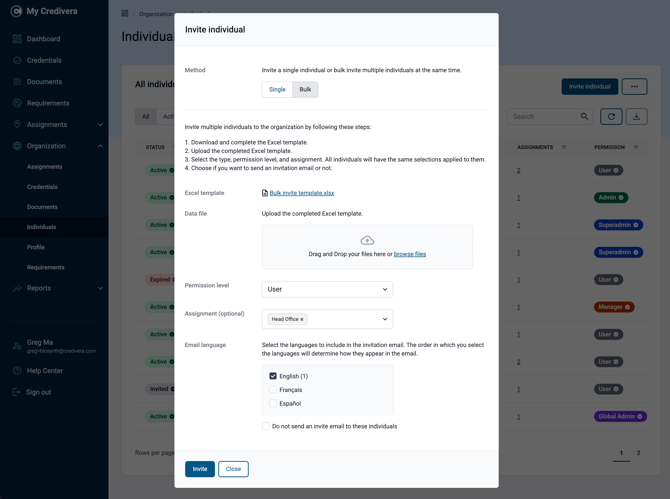
- In the window that opens, select your invitation method. You can choose to invite a single individual or bulk-invite multiple users at once.
- To invite a single individual, fill out the following fields:
- Name & Email: Provide their first name, last name, and email address.
- Language: Choose the language for the automated invitation email.
- Permissions: Choose their level of access. User is the standard tier for most team members. Learn more about managing individuals and permission.
- Assignment: Choose the assignment they will automatically be added to when they accept the invite. For this step, select the assignment you created earlier.
- To bulk-invite users, select Bulk as your method and follow the on-screen instructions:
- Bulk Invite template: Download and fill out the provided template file. Once completed, upload the file back to the system.
- Permissions: Choose the level of access for everyone listed in your template file. User is the standard tier for most team members. Learn more about managing individuals and permission.
- Assignment: Choose the assignment they will automatically be added to when they accept the invite. For this step, select the assignment you created earlier.
- Language: Choose the language for the automated invitation email
- To invite a single individual, fill out the following fields:
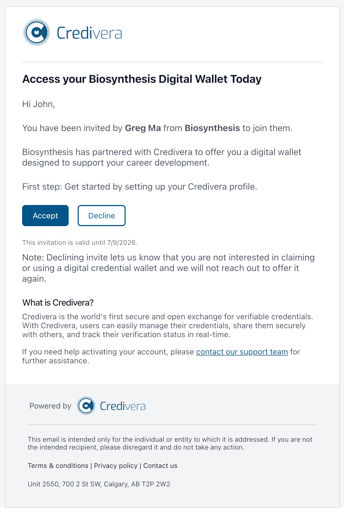
- When you're ready, click Invite. The system will email the individual(s) a link to set their password and sign into the platform.
Step 5: Monitoring compliance
Now that you have added an individual to an assignment, you can begin tracking compliance against the requirements you created.
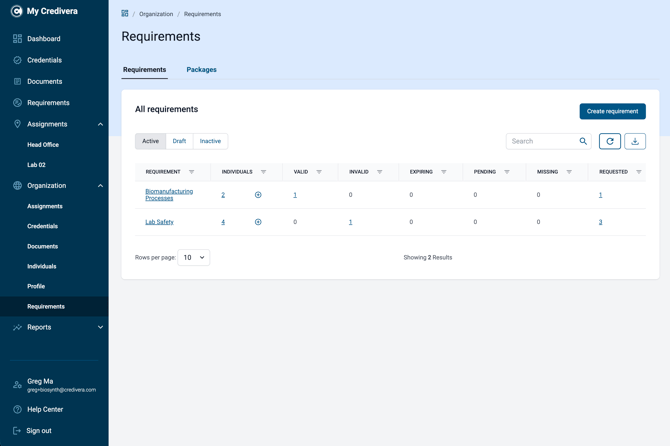
- For a global view of company-wide compliance, navigate to Organization > Requirements. Here, you can monitor every requirement alongside these key metrics:
- Individuals: The total number of individuals assigned to this requirement. Clicking the count opens a window detailing exactly who has received it.
- Valid: The number of individuals who have successfully met the requirement out of the total assigned. Clicking this count opens a window listing compliant users, along with direct links to view their digital credentials.
- Invalid: The number of individuals who previously met the requirement but are no longer compliant, typically due to an expired or revoked credential. Clicking this count opens a window listing these non-compliant users, along with direct links to view the credential that had been submitted.
- Expiring: The number of individuals who are currently compliant, but whose credentials will expire within the next 30 days. Clicking this count opens a window listing these users, along with direct links to view their submitted credentials.
- Pending: The number of individuals whose submitted credentials require administrator review and approval. This typically occurs if you have not enabled pre-approved credentials for the requirement. Clicking the count opens a window detailing the user and their submission, allowing you to seamlessly accept or reject it.
- Missing: The number of individuals who have indicated they lack the necessary credential to meet the requirement. Clicking this count opens a window detailing exactly who reported this status, allowing you to easily follow up regarding required training.
- Requested: The number of individuals who have been asked to fulfill the requirement but have not yet taken action. Clicking this count opens a window detailing exactly who has outstanding requests.
- For an assignment-focused view of compliance, navigate to Organization > Assignments:
- From the Assignments page, click the name of an assignment to open its details page.
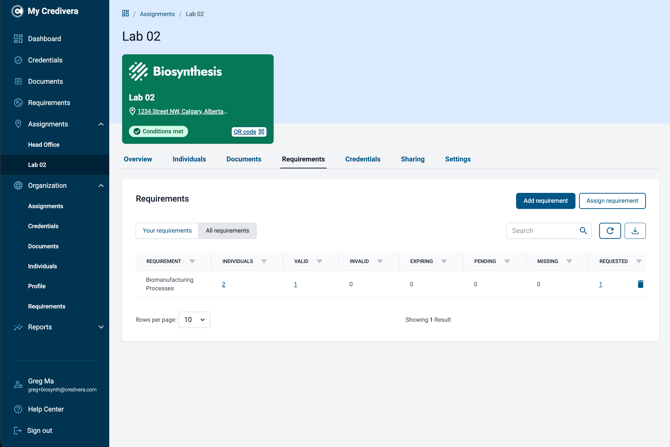
- rom the assignment details page, click the Requirements tab to see all requirements added to this assignment. There are two available views: requirements issued to you personally as a member, and All Requirements, which displays the compliance status of everyone in the assignment. Click the All Requirements button to proceed.
- Here, you will find the same requirement metrics available on the main Organization > Requirements page.
Congratulations! Your organization is now set up and you are ready to begin managing your workforce compliance through Credivera.